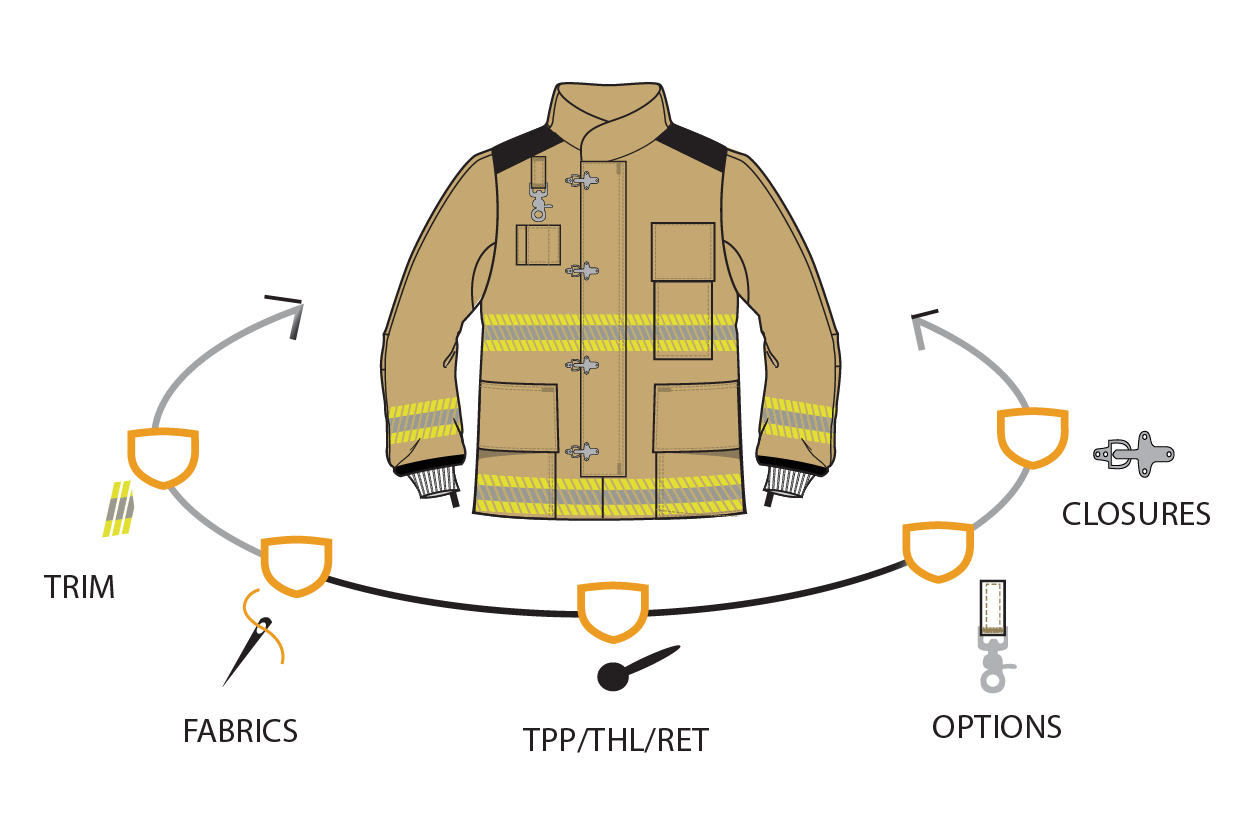
FW_Gear with customizable categories-01
FireWriterLogo_BlackLetters_IRIS-400x100

DISTRIBUTOR USER GUIDE

Welcome to the latest PPE Builder and simplified gear ordering system from Fire-Dex! Below is your guide to the system's features, functions, and benefits.

NAVIGATION

HOME PAGE

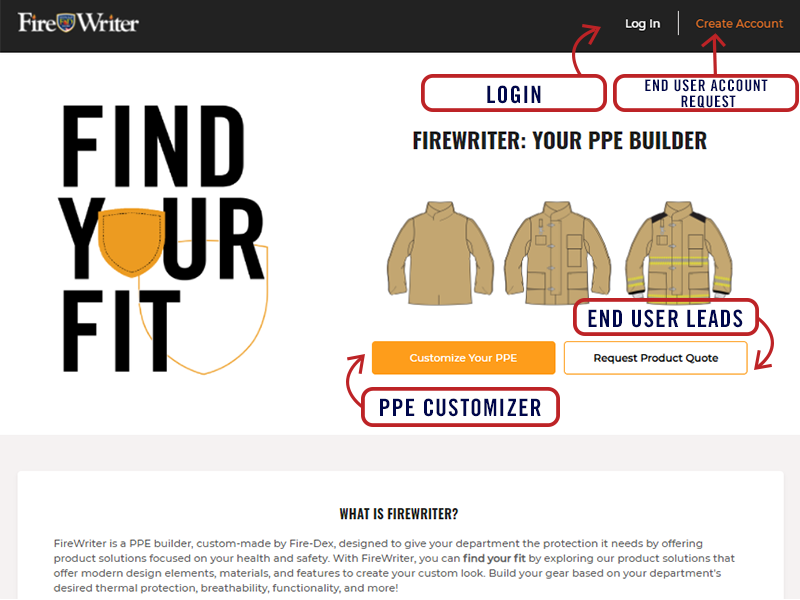
The FireWriter home page is built to focus on end users and lead generation, complete with:
  • Login link
  • Create Account request form
  • Request product quote form (leads are processed through our standard sales operations)
As a distributor, you will Login to access your gear quotes, orders, notifications and more.
*If you don't have a login, contact your distributor admin. The Create Account function is for fire departments/end users
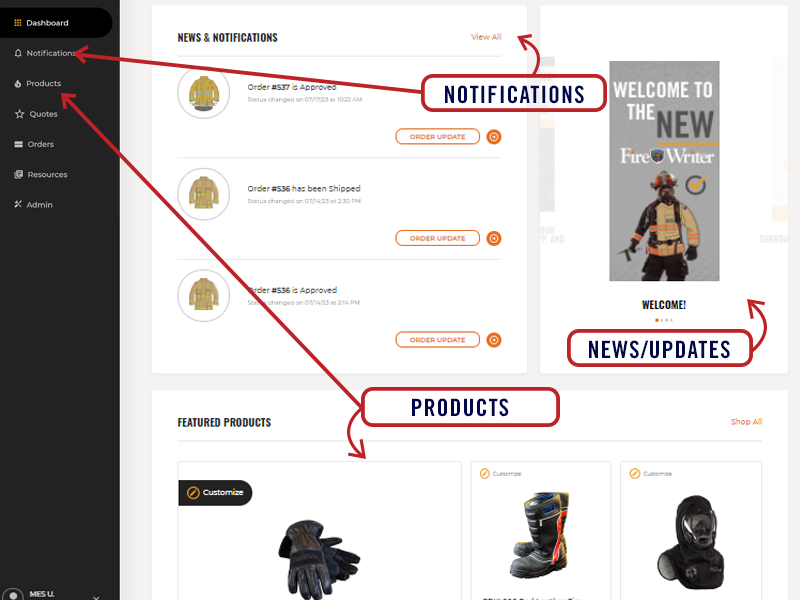
DASHBOARD

The dashboard is your landing page, which will give you quick access to: 
  • Fire-Dex news
  • System and order notifications
  • Recent highlights
  • Featured products
 

NOTIFICATIONS

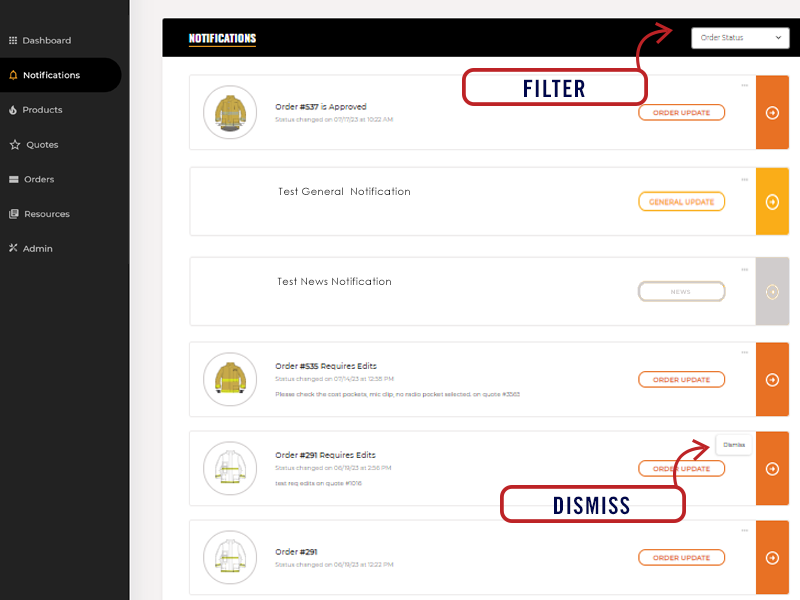
In this section, you'll find:
  • Fire-Dex communications to you, including product updates and news
  • Quote updates, shared quotes, and collaboration requests and messages 
  • Order status and messages from customer service regarding orders
Automated email messages are generated for each quote and order status notification. This way you don't miss a beat! 
 
To dismiss a notification, click on the (... ) in the top right corner of the individual notification.
PRODUCTS TAB

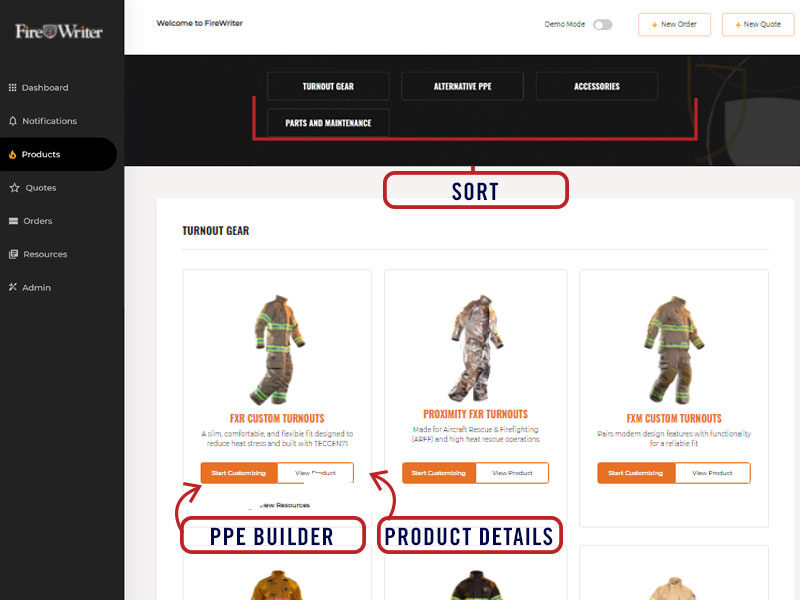
All Fire-Dex products are available and must be ordered in FireWriter. No POs will be accepted by customer service. However, it is required that you upload one to each order in FireWriter. Jump to Starting an Order, for more details.
 
Start Customizing under the product description will take you to the PPE Builder, where you can start customizing gear and begin building a quote.
 
View Product will take you to the Fire-Dex website for more details on that specific product.
QUOTES TAB

What is a quote?
Each completed product selection is considered a quote, so one customized gear spec is considered a quote, one accessory configuration is consider a quote, etc. Completed quotes can be combined together to form a new order or added to an existing order.
 
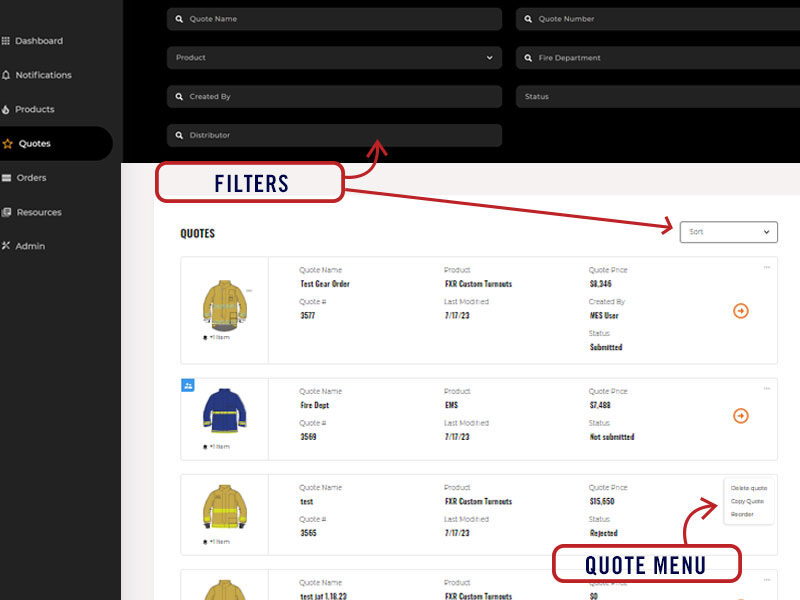
Features of the quote page include:
  • Filtering by quote name, quote number, product, fire department, or status
  • Sorting by quote name, quote number, price, date created, last modified date, or fire department
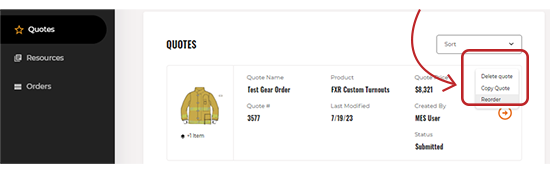
  • Individual Quote Menu (...) will offer options to delete, copy, assign to order or reorder, based on quote status
Jump to Quote Creation 
 

ORDERS TAB

What is an order?
An order can contain one quote or a combination of quotes.
 
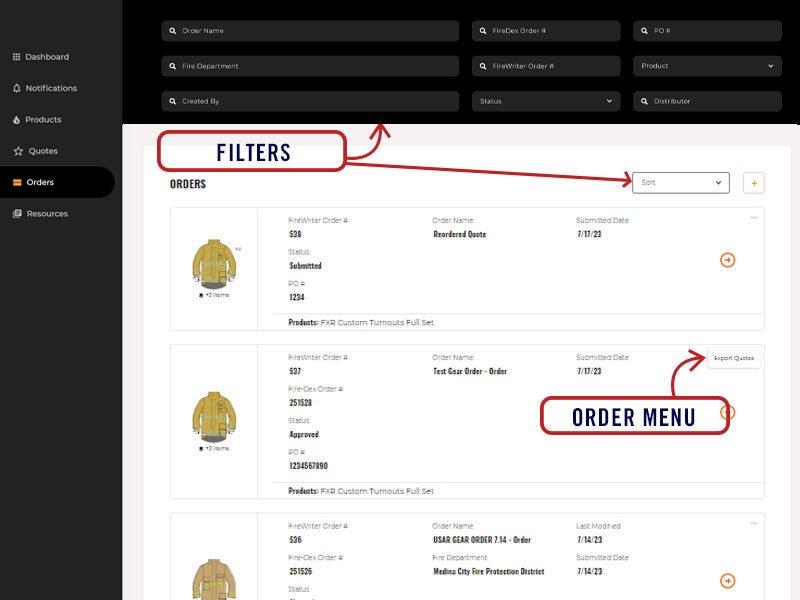
Features of the order page include:
  • Filtering by order name, Fire-Dex order number, PO#, fire department, status or product
  • Sorting by order name, fire department, last modified, price, date submitted, oldest
  • Individual Order Menu (...) allows you to export the order to a PDF, delete an order, or add an additional quote to the order, based on order status
 

RESOURCES TAB

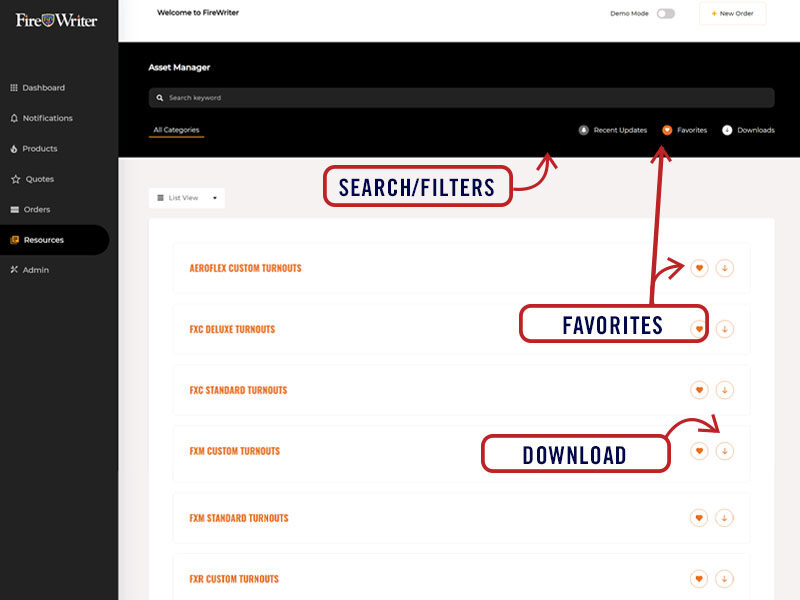
With the resource tab you can filter through all Fire-Dex assets in one central location, download the files you need, and save your favorites for quick access. 
 
Some available assets include:
  • Price Lists
  • Logos
  • Literature
  • Product Photos
  • Presentations
 

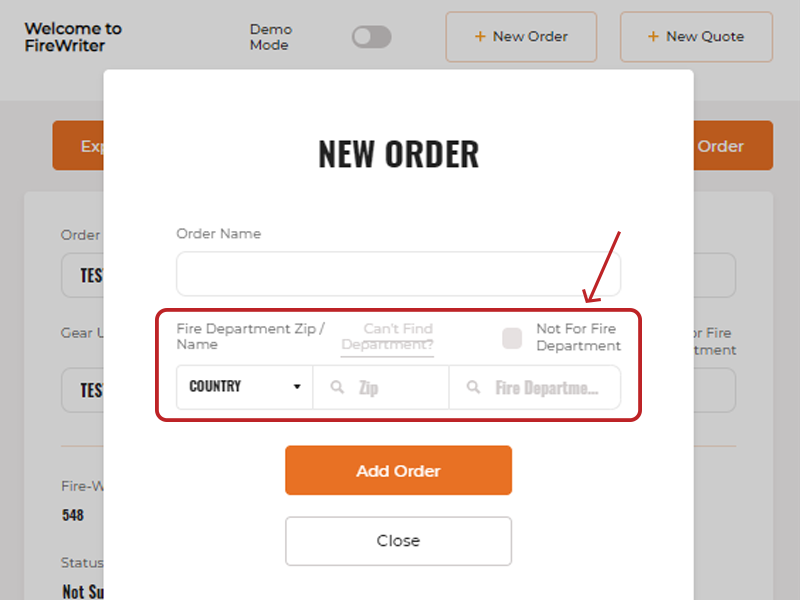
FIRE DEPARTMENT LOOK UP

What is the Fire Department Look Up?
This feature allows you to tie a Fire Department to your quotes & orders for easy searchability and reference. 
 
How do I use this feature?
Simply search for a fire department by typing in its zip code or the fire department name. Select the appropriate department from the provided drop down list (please note: the address listed is often for the headquarter location).
 
Important notes:
  • This field is required to submit an order
  • Your FD selection does not impact the shipping address. You will be able to add a shipping address when creating your order
  • Use the ‘Can’t Find Department?’ link if you're unable to locate a department in the search and follow the prompts.

ROLES & ACCESS

DISTRIBUTOR USER

Those who have been granted access to FireWriter will receive a welcome email. Once logged into the system, a distributor user can:
  • View full catalog of product lines available to the distributor's organization
  • Build and customize gear specs
  • Share or save configurations and collaborate with other FireWriter users
  • Receive notifications and news from Fire-Dex
  • View pricing and place orders (if the proper access has been granted by distributor admin) 

DISTRIBUTOR ADMIN

Individuals assigned with distributor admin access will have all the capabilities of a distributor user, plus visibility over the organization's entire network of distributor users and their activity. Other features include:
  • Full access to team management ​
  • Invite new distributor users and assign their access level
  • Apply user status (active/not active)
  • Grant or deny pricing access *users without pricing access cannot submit orders
  • Manage shipping account information (which can be accessed by all distributor users in ordering process)
  • View and filter all quotes and orders for users within the organization​
  • Manage company logo used for quoting

QUOTE CREATION

STARTING A QUOTE

There are 2 ways to begin drafting a new quote: 
  1. From the products tab, select "Start Customizing" under the desired product then choose full set, coat or pant.
  2. From the header, click "New Quote", enter your personalized "Quote Name", complete the "Fire Department" lookup then select the product line you want to customize.
Both options above will take you to the PPE Builder where you will be prompted to make a series of selections to build out your customized NFPA certified gear. Each completed build out is considered one (1) quote.
You may also use an existing quote as a template to start a new one. This can be done by:
  1. Viewing the Summary Tab of an existing quote and selecting "Copy Quote".  The copy will be assigned a new quote number. Note: this option will only appear in quotes that have NOT been submitted.
  2. Visiting the Quote Tab and selecting "copy quote" from the Individual Quote Menu (...). The copy will be assigned a new quote number.
  3. Reordering a previously submitted quote from the individual quote menu - this will create a new order using the same quote number as the original. You will not be able to make changes with the exception of sizing updates.  *This function is only available for quotes that have been previously approved.
Sizing history will be accessible from the sizing sheet section on the quote's summary page.
Quote_Copy&Reorder

CUSTOMIZING PPE

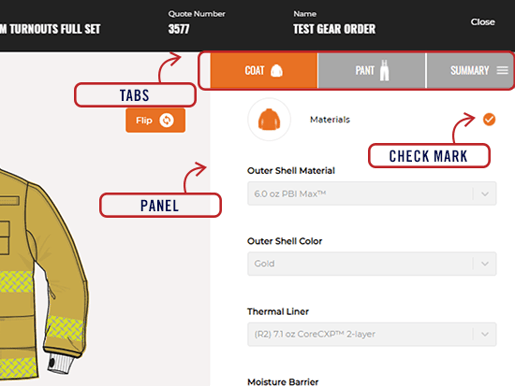
In the upper right hand corner of the PPE Builder, you'll find tabs which indicate whether you're viewing the jacket, pant, or full summary panel. It is best to work through the tabs from left to right.
Start Customizing_tabs & panels_with check mark
When working through the jacket and pant panels, you'll start at the top, selecting your materials, then work your way down through each category until every section is complete. For required sections, the grey check mark will turn orange to indicate it is complete. If you try to submit an order with missing information, a warning (!) mark will appear in the sections that require attention.
 
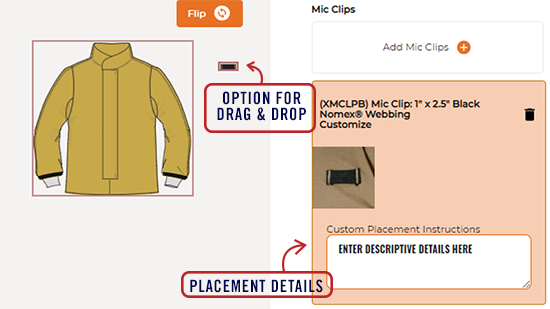
Every option available to you is listed within the system. Items that are custom placed, will appear as an icon outside a red box that can be dragged and dropped into the desired placement. A detailed description is mandatory in order to save. 
Start Customizing_custom placement_dragdrop
Any special requests must be discussed with your Sales Representative or Customer Service Representative prior to order submission. With prior approval, you may add comments into the "Fire-Dex Approved Special Requests" field. 
 

SUMMARY TAB

Once you've completed all jacket/pant sections, you'll move on to the Summary Tab where you'll be offered an array of capabilities, which are tailored to the current quote status and whether or not the quote exists in any orders:
  • Assign to Order - Allows you to assign the current quote to any open existing order.
  • Create New Order - Add the current quote to a brand new order that you can submit or build onto.
  • Collaborate - Shares your current quote with another FireWriter user, keeping the same quote number, and opening access for any collaborators to make changes. All assigned collaborators are listed under the "collaborating" section of the quote's Summary Tab. Collaborators can be removed at any time. See quote log, for more information on how changes are tracked.  
  • Configure Product - Takes you back to the jacket/pant tabs to continue working on the quote or make adjustments.
  • Copy Quote - Makes a copy of the current quote, giving it a new quote number, and saves it for future access in your quotes tab.
  • Email a Copy - Emails a PDF of the current quote to your specified email address. The recipient doesn't need a FireWriter account to view the PDF.
  • Export Specifications - Exports your customized spec into a PDF with descriptions of each selection.
  • Export Summary - Will create a PDF of the quote summary.
  • Print Summary - Opens your computer's print preferences, allowing you to send a document directly to your desired printer.
  • Send a Copy - Will create a new copy of the current quote, give it a new quote number, and send it to your specified FireWriter user (a search field is provided to help you find your recipient).  A notification will appear in the recipient's dashboard and the copy will become available in their quote log.
  • View Order - If the quote was previously added to an order, the "view order" button will take you to the most recent order it is associated with. 

Other items you can adjust from the Summary Tab include:
  • Contract Pricing - If your organization has specific contact pricing assigned to it, the options will show up as a dropdown selection field.
  • Discount Pricing - Previously agreed upon discount pricing can be entered in the appropriate field. This will trigger the system to calculate your discounted totals.
  • Fire Department Lookup - Will search the full fire department database as you type to find the correct location.
  • Sizing - this is where you'll enter individual sizing information for your customer. Click here to jump to the section on sizing. 
  • Collaborating - Lists all users assigned as collaborators. Collaborators can be removed from this section at any time. All collaborators must be removed to submit an order.
  • Selection Summary - This is a condensed view of every option selected during the build out of the quote. Pricing will show per section and a total cost will display, if you have the proper access.

QUOTE LOG

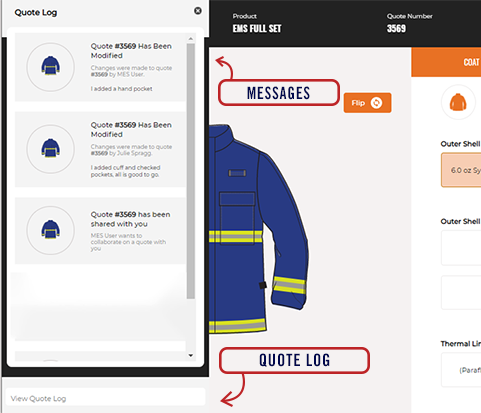
While working within the jacket/pant panels of the PPE Builder, you'll see a button in the lower left corner titled, "View Quote Log".  Select it to view updates and history from others collaborating with you on the quote.
 

SIZING SHEET

Before you can place an order, you'll need to enter sizing information for your customers. This is made easy through our integrated system which is accessible via laptop, tablet or mobile device.
 
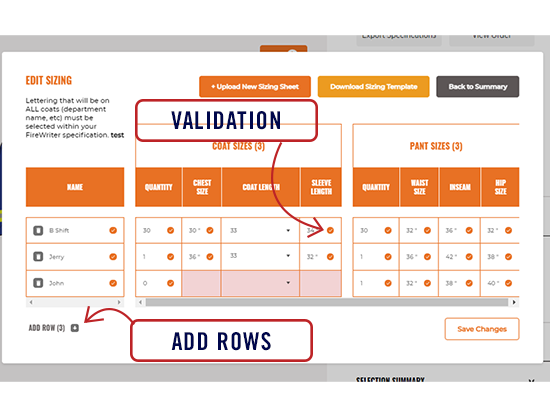
Individual measurements can be added directly into the form provided (recommended) or you may upload a spreadsheet which will auto-fill the form. A quantity field allows you to simply add multiples of the same size or a different combination of coats vs. pants (If ordering only pants, put 0 for coat and visa versa). These entries are saved and can be revised at any time prior to order submission.
 
If you opt to use the spreadsheet, please note these 3 important instructions:
  1. You will need to download the sizing form from the quote in which those sizes will be submitted. The system is designed to generate a customized spreadsheet based on your selections. Ensuring you download the correct/current sheet will prevent submission errors.
  2. Spreadsheets will populate the data into the integrated form and are not saved as attachments once the information is uploaded. You may want to keep a copy for your records.
  3. Do not save sizing templates to your personal device as they may become outdated.
Sizing sheets are customized by product line and the system is trained to provide recommendations. For example, a BEG and/or Fit Type may be recommended for FXR based on the sizing entered. It is also designed to flag you when information appears to be invalid and highlights required cells in pink if information is missing.

DEMO MODE

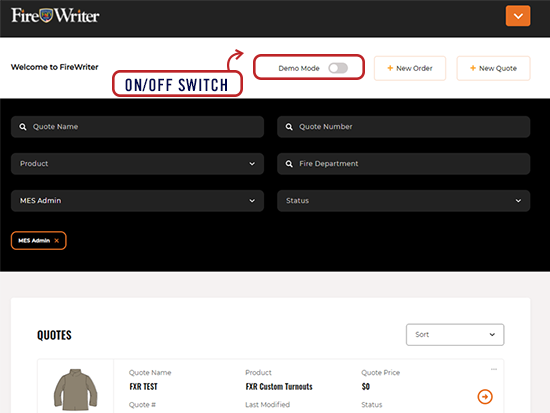
For distributors with access to pricing, you may turn the feature on/off by clicking on the slider in the webpage header or on the summary page.

Toggling the feature on will hide all pricing. This is often used when your discussing gear with a customer, but aren't ready to talk about costs.

STARTING AN ORDER

TURNING QUOTES INTO ORDERS

 Once you've completed individual quotes for each product, there are 4 ways to create a new order:
  1. From the quote's Summary Tab, select "Create New Order" and follow the prompts.
  2. From the header on any page, click on "New Order", add order title, select department, then follow the prompts.
  3. From the Order Tab, click on the "+" button in the right corner (next to sort) and select the quotes you want added.
  4. From within an Order, choose "+ Add Quote to Order" to add a previously completed garment or "+ Add Accessory to Order" to add helmets, hoods, gloves, or boots to your order.
PLACING AN ORDER

After adding all desired quotes to your order, you'll need to remove any collaborators from the quote then complete the following on the order page before submitting to customer service:
  • Order Name - Create a desired title for your order.
  • Fire Department Lookup - Select the appropriate department from the database and provide a point of contact.
    *If for stock or demo use, select 'not for fire department' and enter description of use
  • PO Number and Document Upload - Uploading a PO is required for your documentation and future reference, but they are not cross referenced against the FireWriter order. You must agree to terms and conditions, acknowledging that the FireWriter order is final before submitting.
  • Additional Documents - Supportive documents can be uploaded, when required.
  • Shipping Address - All addresses are validated in real-time by Google Maps.
  • Shipping Account Information - Your distributor admin has the ability to manually enter company account information. This will auto-populate for all distributor users under the organization. You will have the ability to override the default shipping address, if needed.
  • Order Alert Codes - You have the option to mark an order as a 1. First Order Conversion, 2. Wear Trial, 3. Contract Lead Time, or 4. Metro. Check all that apply. Selections will be verified before acceptance.
Once complete, review the information for accuracy, then scroll to the bottom of the page and select "Submit Order". When an order has been processed, a Fire-Dex order number will appear next to the FireWriter order number​. You'll receive a notification when shipment tracking becomes available. 

COMMUNICATIONS

NOTIFICATIONS

Notifications can be viewed from the dashboard, Notifications Tab, or via email. Notifications will be sent when:
  • Order status has changed e.g. requires edits, approved, shipped, etc. Status updates will also trigger an email communication to your inbox.
  • A quote has been shared with you or modified by another user or collaborator. These updates will also trigger an email communication to your inbox.
  • Product news and updates.

VALIDATION 

FireWriter has been configured with many checks and balances. Examples of this functionality include: 
  • Dependency rules to validate options offered work with the garment selected.
  • Flags (!) that indicate an item is incomplete or appears to be incorrect.
  • Automatic adjustments that ensure the correct options are selected e.g. a harness selection may prompt the system to add the appropriate closure or pocket options. 
  • Recommendations for sizing adjustments e.g. a BEG may be suggested based on measurements provided.

MESSAGES

You will receive a number of communications from FireWriter for events such as: 
  • Updates from collaborators in the Quote Log.
  • Questions or change requests from our customer service team.
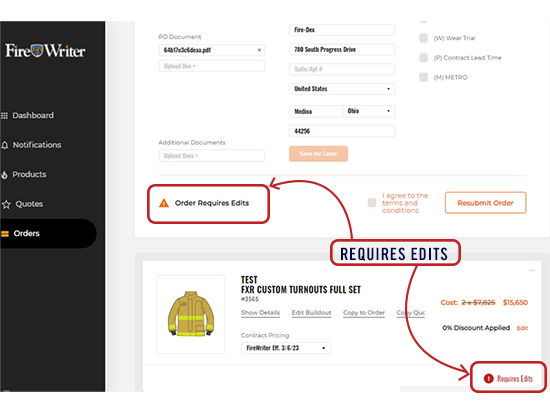
    • An indicator (!) will show up on your order to notify you that it requires edits. Clicking on it will open a chat between you and your CSR (please be advised that chat boxes can only be initiated by our customer service team). The history will remain in the dialog for future reference.
Order_CSR Log